One of the first things people notice about your website is its address.
If your website is still using a free Weebly subdomain like:
yourbusiness.weebly.com
it may be time to upgrade to a custom domain such as:
yourbusiness.com
A custom domain makes your website look more professional, builds trust with visitors, strengthens your brand, and can even help with your SEO.
The good news is that connecting a custom domain to your Weebly website is easier than many people think.
In this step-by-step guide, we’ll show you exactly how to connect your own domain to Weebly, whether you purchased it from Weebly, GoDaddy, Namecheap, Cloudflare, Google Domains (or another registrar), or any other domain provider.
By the end of this guide, you’ll have your own professional domain connected to your Weebly website.
What Is a Custom Domain?
A custom domain is your website’s unique address on the internet.
Instead of:
mywebsite.weebly.com
you can use:
mywebsite.com
or
www.mywebsite.com
Think of it as the digital equivalent of your business’s street address.
It’s easier to remember, easier to share, and far more professional.
Why You Should Use a Custom Domain
Many new website owners start with a free Weebly subdomain.
There’s nothing wrong with that while you’re building your website.
However, once you’re ready to launch publicly, a custom domain offers several important advantages.
1. Professional Appearance
Which website would you trust more?
bestcakes.weebly.com
or
bestcakes.com
A custom domain immediately makes your business appear more established.
2. Stronger Branding
Your domain becomes part of your brand.
You’ll use it on:
- Business cards
- Social media
- Email signatures
- Advertisements
- Marketing materials
A memorable domain helps customers find you more easily.
3. Better SEO
Although Google has stated that having a custom domain alone won’t automatically improve rankings, it can indirectly benefit your SEO by:
- Building brand recognition
- Increasing trust
- Encouraging backlinks
- Improving click-through rates
- Creating a consistent online presence
If you’re serious about growing your website, a custom domain is an essential foundation.
4. Professional Email Addresses
Once you own a domain, you can create email addresses like:
hello@yourbusiness.com
instead of
yourbusiness@gmail.com
Professional email addresses inspire more confidence and reinforce your brand.
Before You Begin
Before connecting your domain, you’ll need:
- A published Weebly website
- A paid Weebly plan that supports custom domains
- A registered domain name
- Access to your domain registrar account
If you haven’t purchased a domain yet, you can either buy one through Weebly or use a third-party registrar.
Option 1: Buy a Domain Through Weebly
The easiest option is purchasing your domain directly through Weebly.
Advantages
- Automatic setup
- No DNS configuration
- Managed from one dashboard
- Beginner-friendly
Steps
- Log into your Weebly account.
- Open your website editor.
- Navigate to Settings > General.
- Click Connect or Buy Domain.
- Search for your preferred domain name.
- Complete your purchase.
- Publish your website.
Your domain will usually connect automatically.
Option 2: Connect an Existing Domain
Already own a domain?
No problem.
You can connect domains purchased from providers such as:
- GoDaddy
- Namecheap
- Cloudflare
- Squarespace Domains
- IONOS
- Bluehost
- Hostinger
- Porkbun
The process requires updating your DNS records.
Don’t worry—it’s easier than it sounds.
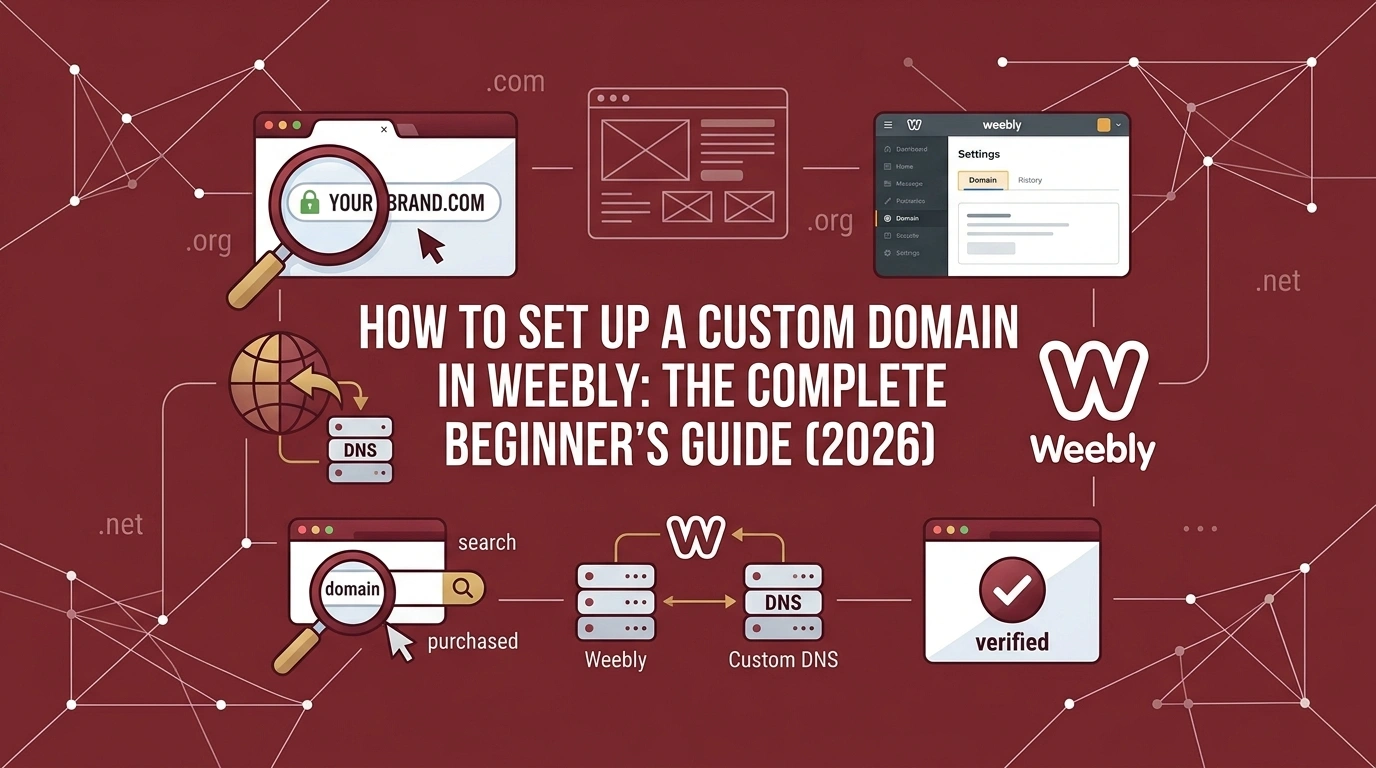
Step 1: Add Your Domain in Weebly
Inside your Weebly dashboard:
- Open Settings.
- Select General.
- Click Connect Domain.
- Enter your domain name.
- Save your changes.
Weebly will now display the DNS records you’ll need.
Leave this page open.
Step 2: Log Into Your Domain Registrar
Next, log into the company where you purchased your domain.
Locate the section called:
- DNS Management
- DNS Settings
- Zone Editor
- Advanced DNS
Every registrar labels it slightly differently.
Step 3: Update Your DNS Records
You’ll typically need to add or update:
A Records
Point your root domain (yourdomain.com) to Weebly’s IP address.
If multiple A records already exist, replace them with the values provided by Weebly.
CNAME Record
Point the www version of your domain to the destination specified by Weebly.
For example:
Host:
www
Points to:
www.weebly.com
(Always use the values shown in your Weebly account, as they may change over time.)
Remove Conflicting Records
If your DNS contains old A records or CNAME records for the same host, remove them to avoid conflicts.
Step 4: Wait for DNS Propagation
DNS changes are not instant.
Propagation usually takes 15 minutes to a few hours. In some cases, it may take up to 48 hours.
During this time, your website may load intermittently.
This is completely normal.
Publish Your Website Again
After your domain is connected:
- Return to Weebly.
- Click Publish.
Publishing ensures your website is linked correctly to the new domain.
Enable SSL
SSL encrypts the connection between your website and visitors.
Your website should load as:
https://yourdomain.comrather than:
http://
SSL is important because it:
- Protects visitor data
- Builds trust
- Prevents browser security warnings
- Supports SEO best practices
If SSL doesn’t activate immediately, allow additional time after your domain finishes connecting.
Choose Your Preferred Domain Version
Decide whether you want visitors to use:
www.yourdomain.com
or
yourdomain.com
Both are acceptable.
The important thing is consistency.
Configure your preferred version and redirect the other version automatically.
This prevents duplicate content and ensures search engines know which version to index.
Test Your Website
Once everything is connected, test every important page.
Check:
- Homepage
- Contact page
- Navigation
- Images
- Forms
- Blog posts
- Store pages
Also test your website on:
- Desktop
- Mobile devices
- Multiple browsers
Everything should work exactly as it did before.
Common Problems (And How to Fix Them)
My Domain Isn’t Working
Usually caused by:
- Incorrect DNS records
- DNS propagation delays
- Typographical errors
- Old DNS records still active
Double-check every record against the values shown in your Weebly account.
SSL Isn’t Enabled
SSL often activates automatically after DNS propagation finishes.
If it hasn’t activated after 48 hours:
- Republish your website.
- Verify your DNS settings.
- Contact Weebly support if necessary.
Website Loads on the Old Weebly Address
This is common immediately after connecting your domain.
Republish your site and wait for DNS propagation to complete.
“www” Works but the Root Domain Doesn’t
This usually indicates a problem with your A records.
Review your DNS settings and ensure the correct IP addresses are configured.
Email Stopped Working
If you already use email with your domain, be careful not to delete MX records while updating DNS settings.
MX records control your email service.
Removing them can interrupt email delivery.
SEO Tips After Connecting Your Domain
Connecting your domain is only the first step.
To maximise your website’s visibility:
- Submit your sitemap to Google Search Console.
- Connect Google Analytics.
- Optimise your page titles and meta descriptions.
- Use descriptive URLs.
- Add internal links.
- Compress images.
- Publish high-quality content regularly.
These practices will have a much greater impact on your rankings than simply changing your domain.
Frequently Asked Questions
Do I need a paid Weebly plan to use a custom domain?
Yes. Connecting a custom domain requires a paid Weebly plan.
Can I use a domain I already own?
Absolutely.
Most domain registrars work perfectly with Weebly as long as the DNS settings are configured correctly.
Will changing my domain affect SEO?
If you’re moving from a weebly.com subdomain to a custom domain after launch, search engines will need to discover and index the new domain.
If your old site already has search traffic, it’s important to implement redirects where possible and update external links, Google Search Console, and Google Business Profile with your new domain.
If you’re connecting a custom domain before your site is publicly established, there is generally little to no SEO impact.
How long does it take for a domain to connect?
Most domains connect within a few hours.
However, DNS propagation can take up to 48 hours in some cases.
Can I move my domain away from Weebly later?
Yes.
Your domain can be transferred to another registrar or connected to another website platform in the future if your needs change.
Final Thoughts
Connecting a custom domain is one of the most important steps in launching a professional Weebly website.
It improves your credibility, strengthens your brand, and creates a better experience for your visitors.
Although updating DNS settings can seem intimidating at first, the process is usually straightforward when you follow the correct steps.
Once your domain is connected, remember that it’s only the beginning.
Continue improving your website by focusing on:
- Search engine optimisation (SEO)
- Website speed
- High-quality content
- Mobile responsiveness
- User experience
These factors will help your website attract more visitors and grow over time.
Whether you’re launching your very first website or upgrading an existing one, a custom domain provides the professional foundation every successful website deserves.