

If your Weebly website isn’t appearing in Google, one of the first things you should check is whether you’ve accidentally told search engines not to index your website or one of its pages.
Weebly provides SEO settings at both the website level and the individual page level. Checking both is very important.
PART 1: Check Your Sitewide SEO Settings
Sitewide SEO settings can affect how search engines access and index your website.
Step 1: Log in to your Weebly account
Log in to your Weebly account and open the website you want to check by going into the website editor.
Step 2: Open your website’s Settings
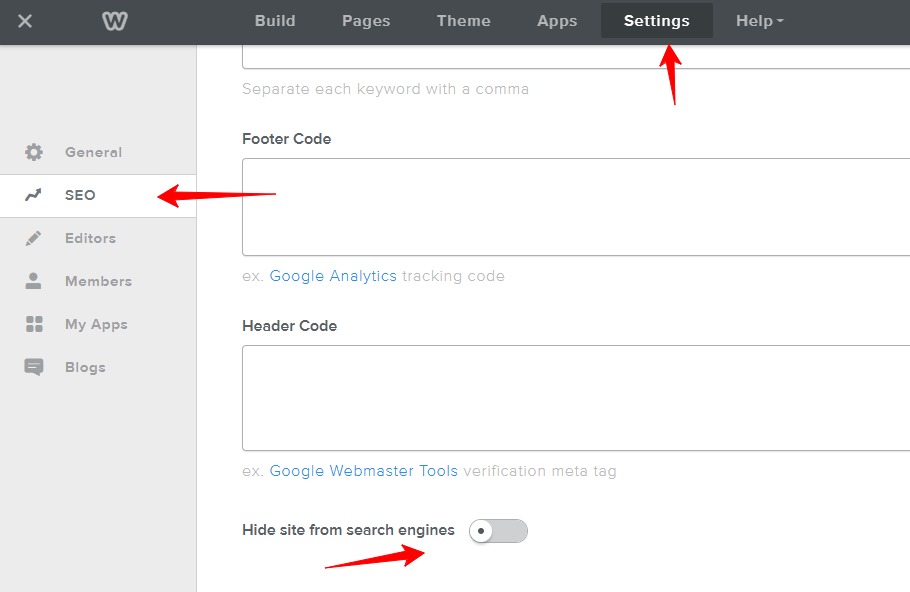
From the Weebly website editor, click Settings.

Step 3: Look for the SEO settings
From the settings tab, click SEO. This is where you’ll find settings and fields that can affect your website’s search engine visibility.
Step 4: Check whether search engines are allowed to index your website
Look for the option that says “Hide site from search engines“.
Make sure that option is turned off as shown in the screenshot below.
Step 5: Check your sitewide SEO code
While you’re in the SEO settings, check whether any custom code has been added to the Header Code area.
Look for code containing instructions such as:
noindex
or:
nofollow
A noindex instruction can tell search engines not to include a page in their search results.
If you aren’t sure what a piece of code does, don’t delete it blindly. Custom code may have been added for other purposes, such as analytics, verification, or third-party services.
Step 6: Publish your website
If you changed an SEO setting, publish your Weebly website so that the change is applied to the live version of your site.
Then give search engines some time to recrawl the website.
Read Also:
Why Your Weebly Website Isn’t Showing on Google (And How to Fix It)
How to Improve Your Weebly SEO in 2026: The Complete Beginner’s Guide
How to Submit Your Weebly Website to Search Engines
Common Weebly Errors and How to Fix Them (2026 Troubleshooting Guide)
PART 2: Check Page-Specific SEO Settings
Even when your sitewide SEO settings are correct, an individual page may still have an SEO setting or piece of code that prevents it from appearing in search results.
This is particularly important if your homepage appears in Google but one or more other pages don’t.
Step 1: Open the Pages Tab
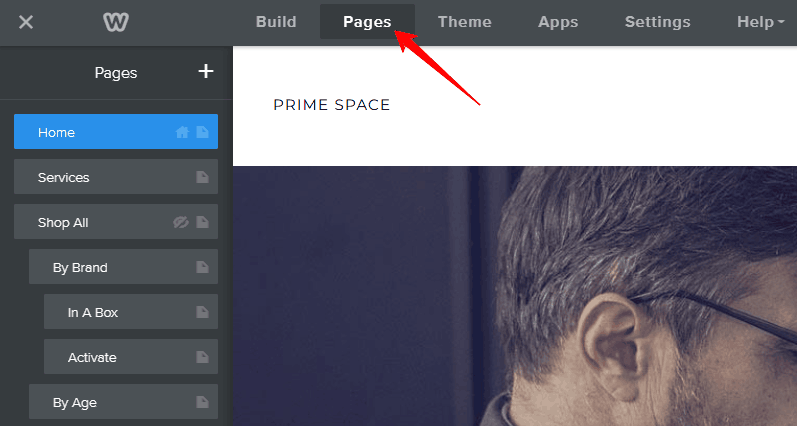
Within the Weebly editor, click Pages.
You’ll see a list of the pages that make up your website.
Step 2: Select the page you want to check
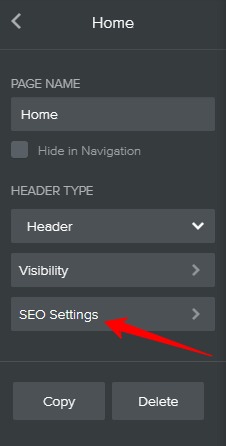
Click the specific page that isn’t appearing in Google.
Click SEO settings.
Note: Since you are troubleshooting whether your website is blocking search engines from indexing, it’s best to check all the pages and not just a specific page.
Step 3: Check the page’s SEO settings
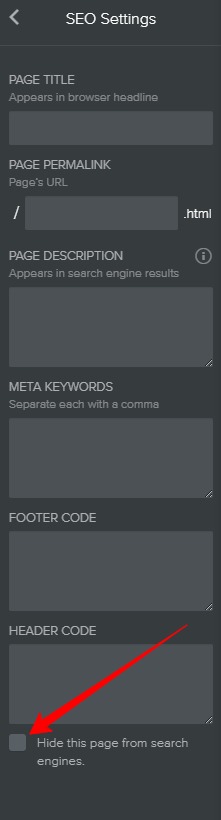
Review the available settings and make sure the page hasn’t been configured to prevent search engines from indexing it.
Look for the option that says “Hide this page from search engines” and make sure that the option is unchecked as seen on the screenshot below.
Step 4: Check the page’s SEO code
Since Weebly allows custom header code for the individual page, you need to inspect it carefully.
Look for instructions containing:
noindex
A page containing a noindex directive may be excluded from Google’s search results even though the rest of your website is perfectly indexable.
Also check for other custom SEO-related code that may have been added manually.
Step 5: Check that the page is actually published
Make sure the page isn’t:
- Password protected
- Accidentally deleted
- Redirected via 301 Redirects (check this by clicking Settings > SEO > scroll down to 301 Redirects)
Important: A page does not necessarily have to appear in your navigation menu to be indexed by Google. However, important pages should generally be discoverable through your site’s internal links.
Step 6: Publish your changes
If you make any changes to the page’s SEO settings, publish the website again.
Then use Google Search Console’s URL Inspection tool to check the page.
You can request indexing if Google hasn’t discovered the updated page yet.
Sitewide vs. Page-Specific: What’s the Difference?
It’s useful to think about these settings this way:
| Setting | What it can affect |
|---|---|
| Sitewide SEO settings | Potentially the entire website |
| Page-specific SEO settings | A particular page |
| Header/custom code | Depends on where the code has been added |
| Page title & meta description | How a page may appear in search results; these don’t normally block indexing |
So, if your entire Weebly website isn’t appearing in Google, start with Part 1.
If your homepage appears but a particular page doesn’t, move on to Part 2.
One More Important Check: Use Google Search Console
Changing your Weebly SEO settings doesn’t guarantee that Google will immediately index your website.
After confirming that your site and pages aren’t blocked, use Google Search Console to investigate further.
For an individual page, enter its URL into the URL Inspection tool. Google will tell you whether the URL is currently indexed and may provide information about why it isn’t.
You can also search Google for:
site:yourdomain.com
For example:
site:example.com
If Google returns pages from your website, your site has been indexed. If nothing appears, further investigation may be necessary.
Don’t Confuse “Not Indexed” With “Not Ranking”
This distinction is important.
If Google hasn’t indexed your page, the page cannot appear in Google search results at all.
If the page is indexed but ranks at position 50, 100, or lower, that’s a ranking/SEO problem, not an indexing problem.
In other words:
Blocked from indexing → Google can’t include the page in search results.
Indexed but ranking poorly → Google knows about the page, but doesn’t consider it competitive enough for the searches you’re targeting.
That distinction can save you a lot of unnecessary troubleshooting.